Shiip report builder allows you to generate customised reports on all your shipments, anytime!
1. Select Reports from the top navigation menu

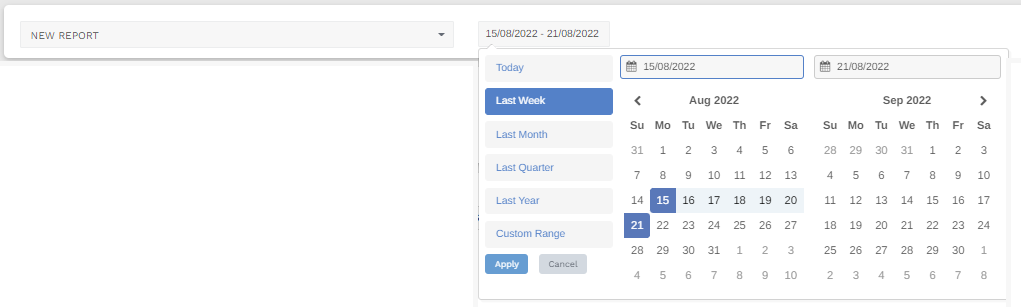
2. Begin by filtering to your desired date range.
You may select one of the set options. eg. Last week, Last Month, Last quarter, or alternatively a custom range.
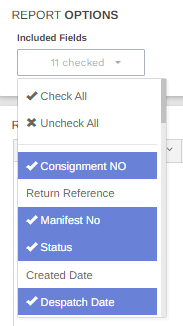
3. Next up is customising the report options starting with Included Fields.
Select the data you would like included in the report by choosing the most relevant fields from the drop down box.
eg. You may select all fields to be included, or alternatively only consignment number, status, and carrier only depending on the purpose of your report.
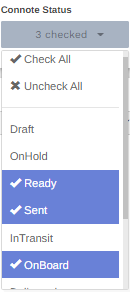
4. Next filter by Connote Status
Select ‘Check All’ from drop down box if you would like all consignments to appear regardless of status, or only opt for consignments with certain statuses to appear on the report.
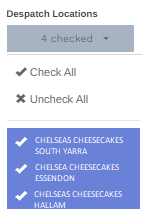
5. Select the Despatch Locations which you would like included on the report.
Once again you can select all to appear, or alternatively customise by selecting only the preferred locations.
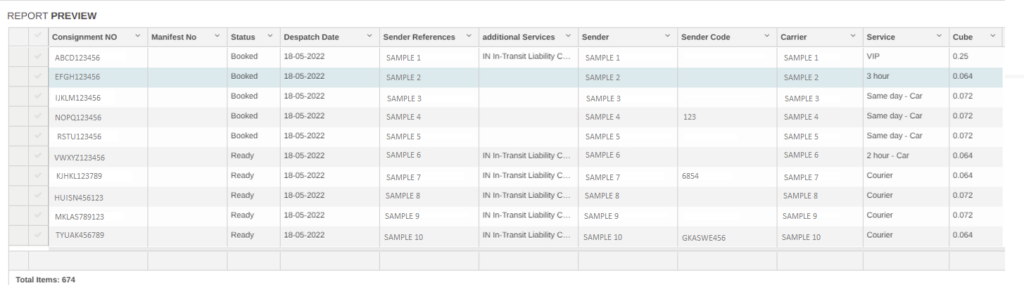
6. A preview of the report will automatically generate displaying the layout according to fields applied.
This will be presented under the section titled Report Preview.
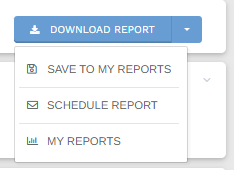
7. Select the Download Report button.
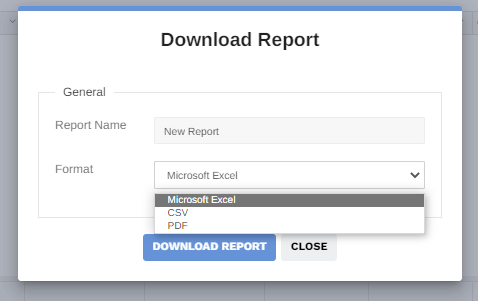
Enter a name you wish the report to be called, then select the most desired format to be saved as. Microsoft excel, CSV, or PDF.
Then select Download Report button once again.
8. Select the drop down arrow next to the Download Report button if you would like to alternatively Save to my reports, Schedule Report, or view My Reports.